Editing photos with Gemini AI has become very popular because it can turn a normal image into a stylish, cinematic, or realistic photo within seconds. But the real power of Gemini AI depends on how well you write your photo editor prompt.
Many users upload their photo but do not get the expected result. This usually happens when the prompt is too short or missing important details like lighting, camera angle, facial clarity, or background style. A well-written Gemini AI photo editor prompt helps the AI understand exactly how your edited photo should look.
In this article, you will find easy and effective Gemini AI photo editor prompts that are ready to copy and paste. These prompts work well for portrait editing, Instagram photos, cinematic looks, and realistic AI photo enhancements.
Gemini AI Photo Editor Prompt for Men
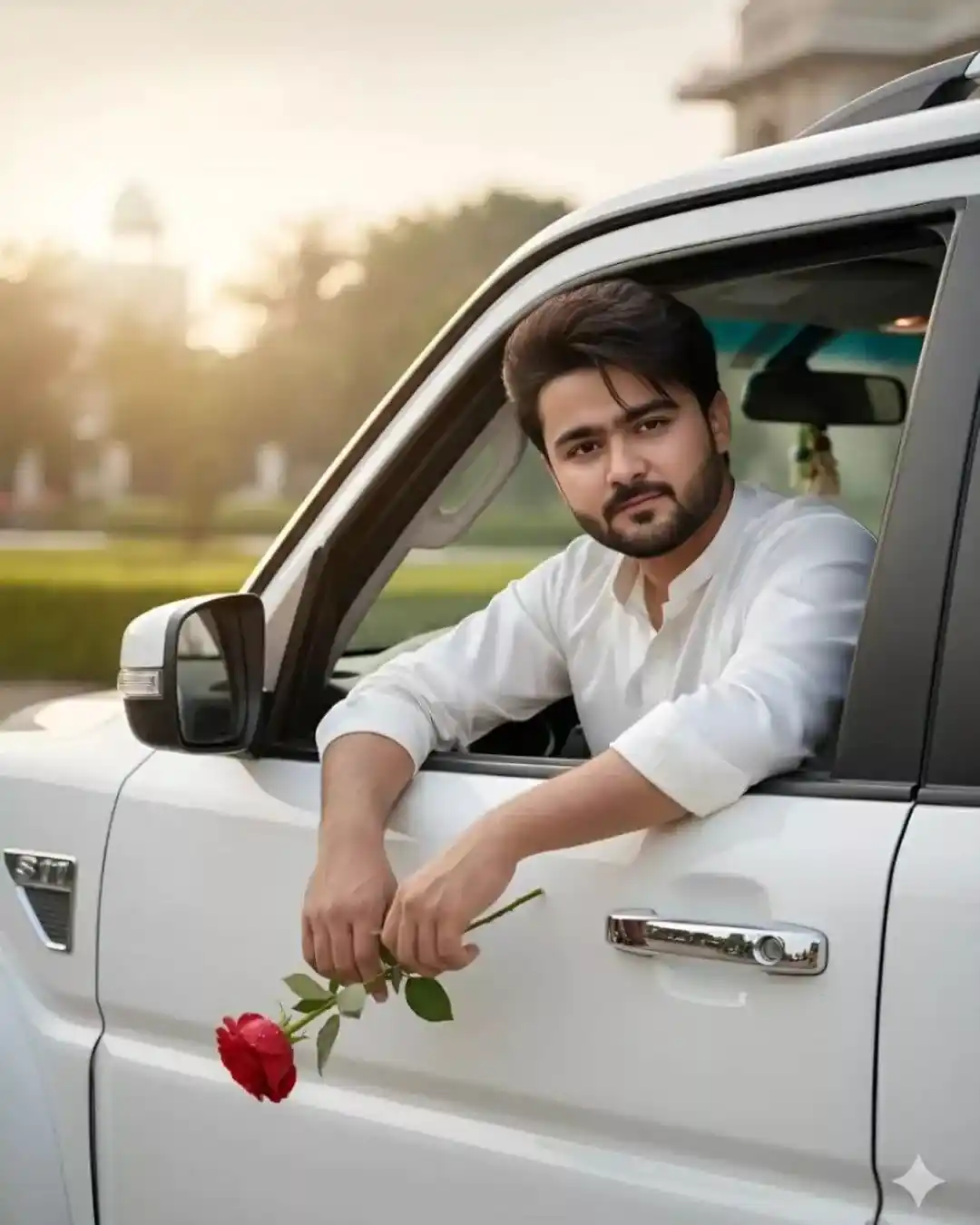
Ultra-realistic, hyper-detailed, 8K cinematic portrait of a young stylish man, using the uploaded image for exact face and hairstyle. Outfit: A silky white kameez with rolled-up sleeves, rendered with soft fabric sheen and realistic texture details. Pose: Sitting confidently in the driver’s seat of a white Scorpio S11 top-model car, captured from a slightly side-front angle, with his exact facial features perfectly matched to the reference image. The driver’s window is open, his voluminous hair moving gently in the natural breeze, and one hand hangs casually outside holdinga red rose with delicate petal details. Background: A premium cinematic exterior environment seen through the open window, with subtle depth-of-field, polished highlights on the white Scorpio S11, and a realistic atmospheric glow enhancing the overall luxury and realism.
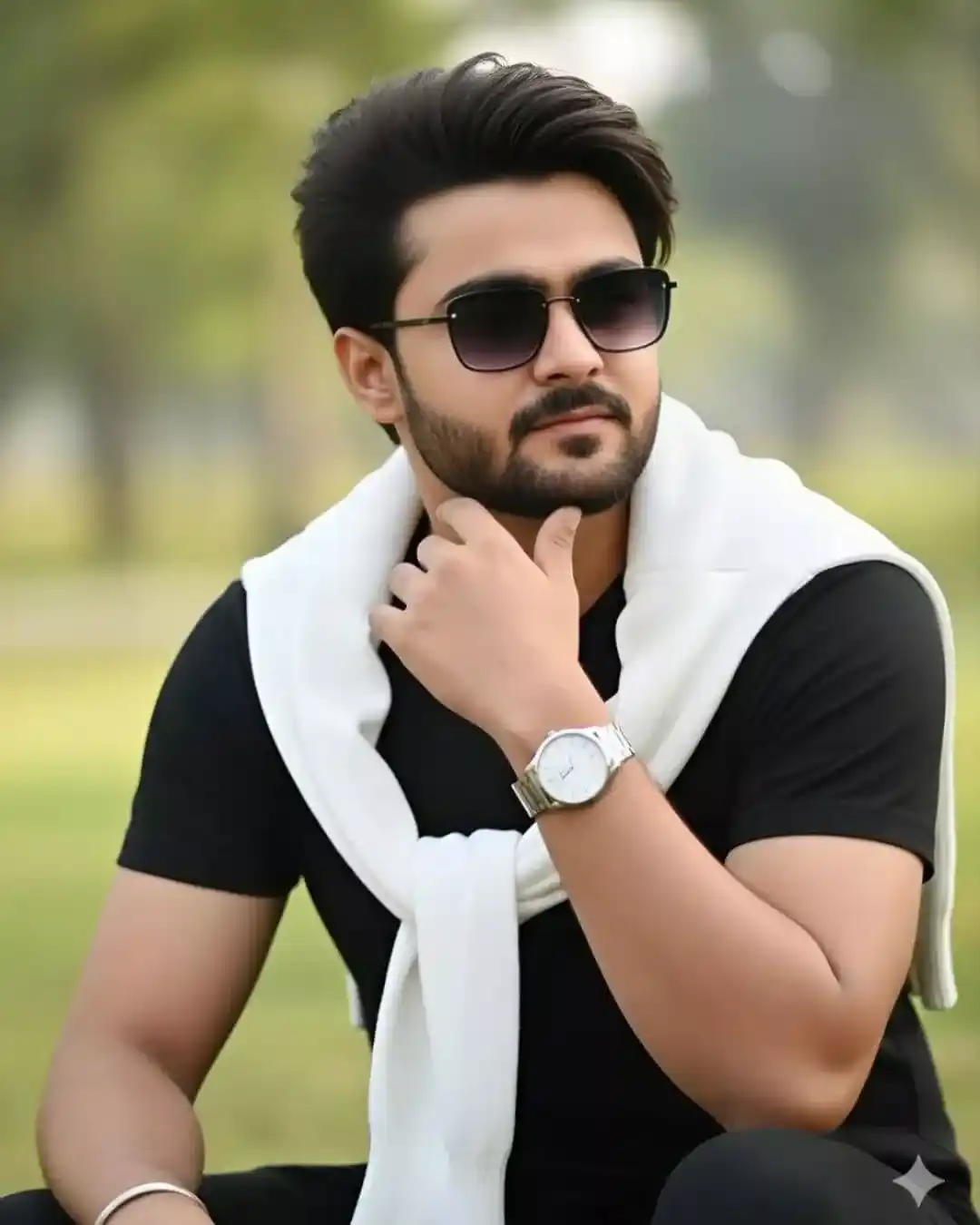
Ultra-realistic, hyper-detailed, 8K cinematic portrait of a young stylish man, using the uploaded image for exact face and hairstyle. Outfit: A refined casual black T-shirt layered with a clean white knitted sweater draped naturally over his shoulders, complemented by a polished silver wristwatch on his left wrist and sleek rimless rectangular black-gradient sunglasses that add a modern, editorial edge. Pose: Waist-up pose, sitting outdoors in a serene natural environment, his posture relaxed yet composed, gazing thoughtfully into the distance with a soft, confident expression, his right hand resting near his chin in a contemplative gesture while keeping the original face perfectly intact and unchanged. Background: A calm, peaceful natural outdoor setting with gentle greenery and soft daylight, enhanced by realistic natural lighting with subtle golden highlights on the face and shoulders, gentle anbient bounce light from the surrounding greenery, and a soft cinematic rim light adding depth without altering the environment.
Gemini AI Photo Editor Prompt Copy and Paste
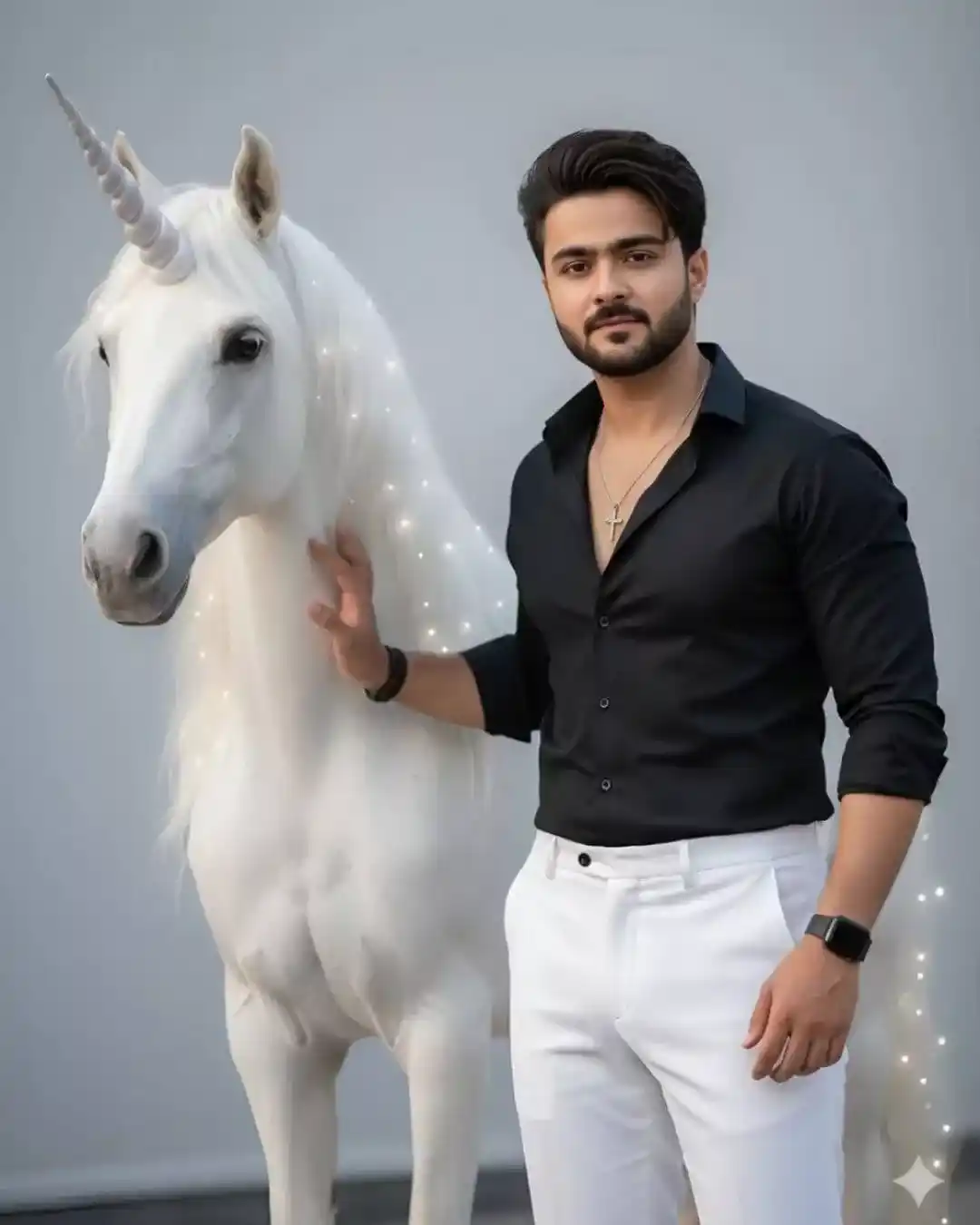
Ultra-realistic, hyper-detailed, 8K cinematic portrait of a young stylish man, using the uploaded image for exact face and hairstyle. Outfit: Fitted black button-down shirt with top. buttons casually open, paired with crisp tailored white trousers; accessories include sleek silver cross necklace, minimalist black wristwatch, and subtle bracelet; refined, modern fairytale fashion look. Pose: Standing beside a majestic white unicorn, hand resting gently on its back; confident, elegant, and charismatic stance; full-body portrait highlighting interaction with the creature. Background: Minimal and clean setting with soft natural lighting emphasizing purity of the unicorn and elegance of attire; glowing pearly highlights on unicorn’s mane adding surreal luxurious touch; ultra-high resolution emphasizing fabric textures, skin details, and cinematic editorial aesthetic.
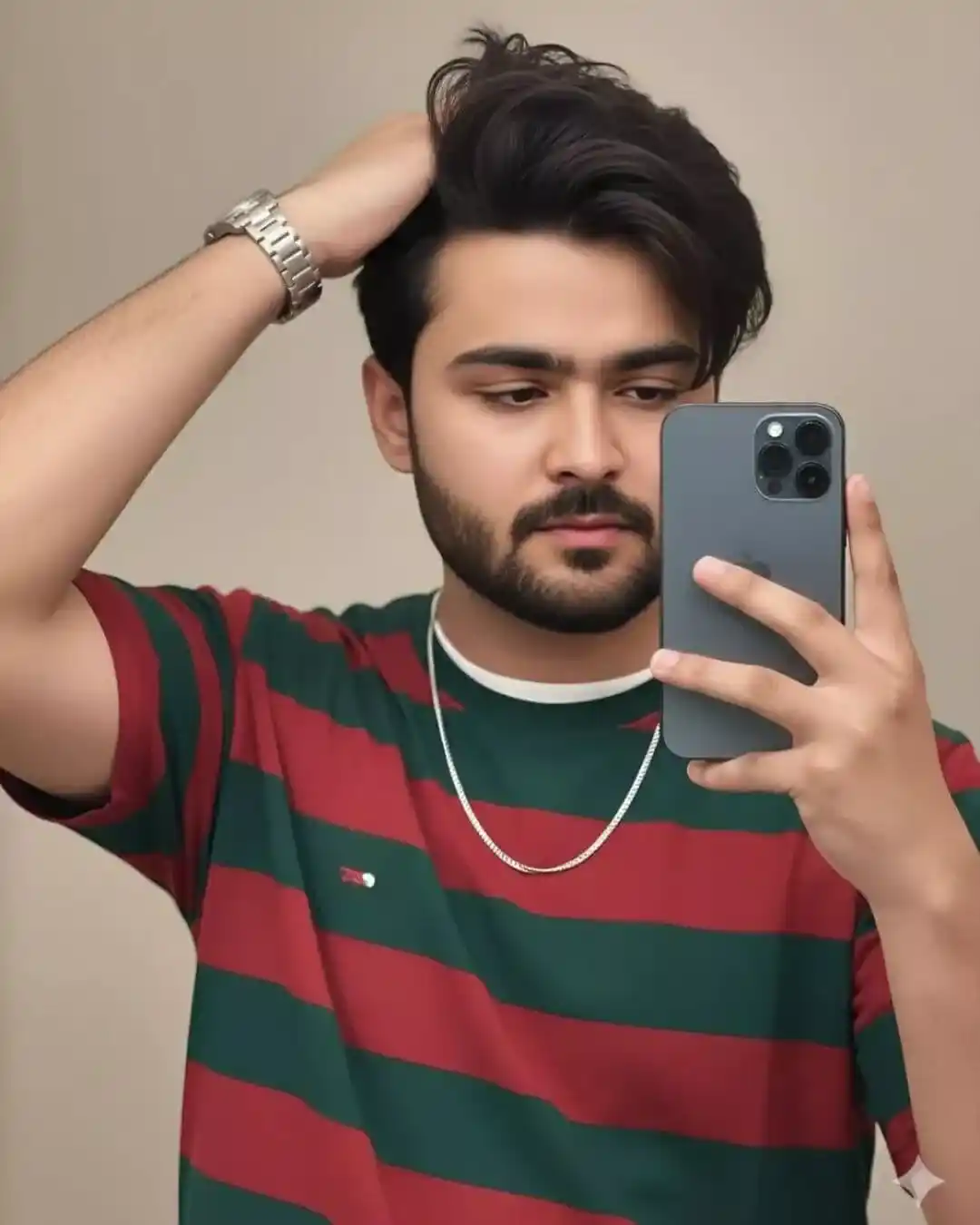
Ultra-realistic, hyper-detailed, 8K cinematic portrait of a young stylish man, using the uploaded image for exact face and hairstyle. Outfit: A deep green and red shirt with crisp detailing, a subtle white inner shirt peeking naturally, a sleek chain necklace, and naturally pink lips for an authentic look. Pose: Taking a mirror selfie with an iPhone 17 Pro held confidently in one hand, clearly visible in the reflection, while the other hand runs through his hair in a casually stylish motion, partially covering his face and revealing the wristwatch or bracelet prominently. Background: A softly lit, smooth plaiń backdrop with gentle cinematic lighting that enhances skin realism and adds depth withoutintroducing any ●artificial or CGI feel.
Copy-Paste Gemini AI Photo Editor Prompt
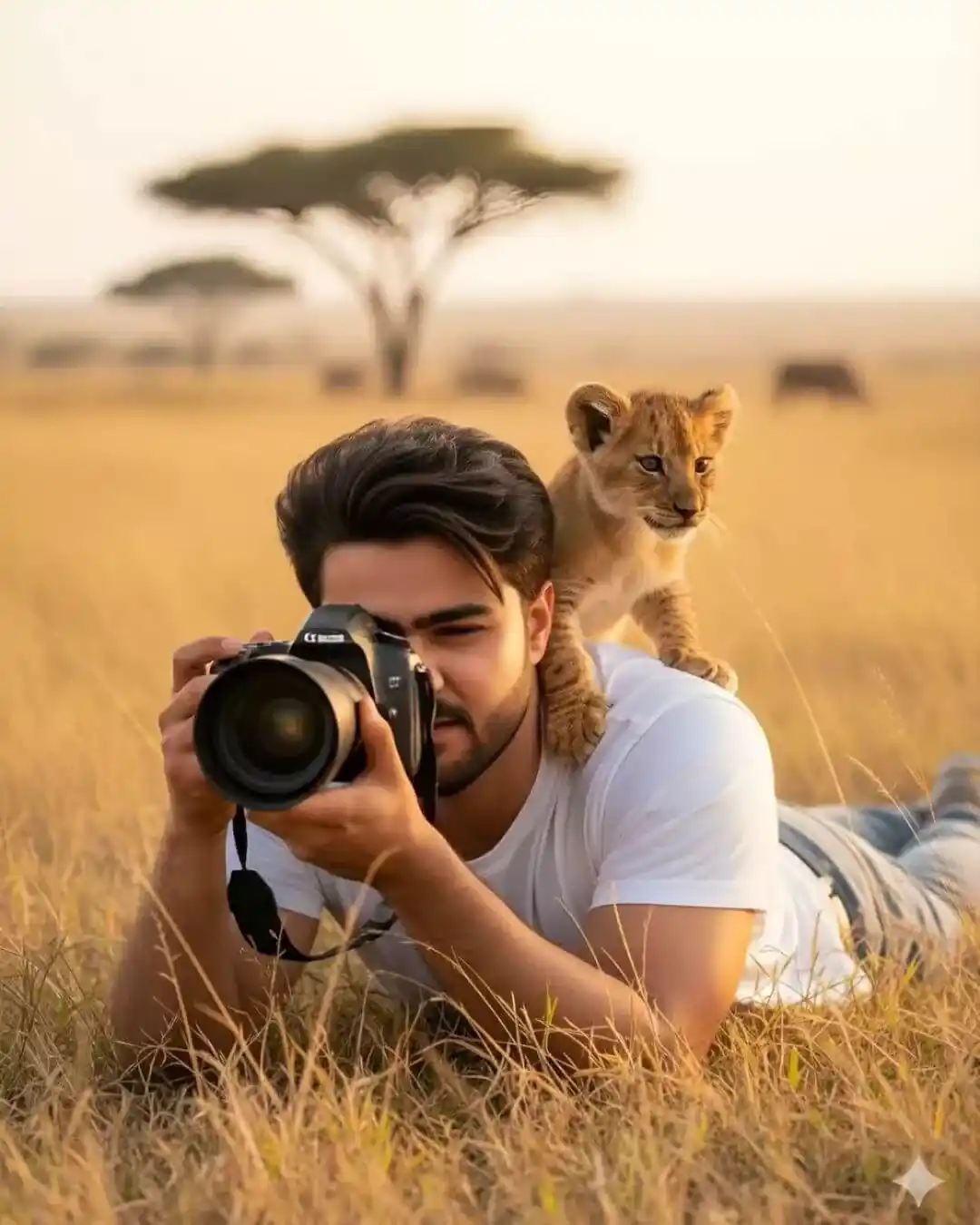
Ultra-realistic, hyper-detailed, 8K cinematic portrait of a young stylish man, using the uploaded image for exact face and hairstyle. Outfit: Plain white t-shirt with a natural outdoor texture, lightly creased and dusted with grass from lying on the ground, fitting comfortably and realistically under golden hour sunlight. Pose: Lying flat on the grassy ground, holding a professional DSLR camera equipped with a large telephoto lens, fully focused on capturing wildlife. A playful lion cub sits on his shoulder, curiously gazing into the distance, creating a dynamic yet tender wildlife photography moment. His expression is concentrated yet calm, reflecting passion and connection with nature. Background: Expansive African savannah bathed in warm golden-hour light, with tall dry grasses glowing in amber hues. The soft cinematic depth of field blurs the distant landscape – acacia trees, subtle dust particles, and a glowing horizon – producing a vibrant, immersive, ultra- realistic Scene filled with warmth, color, and emotion.
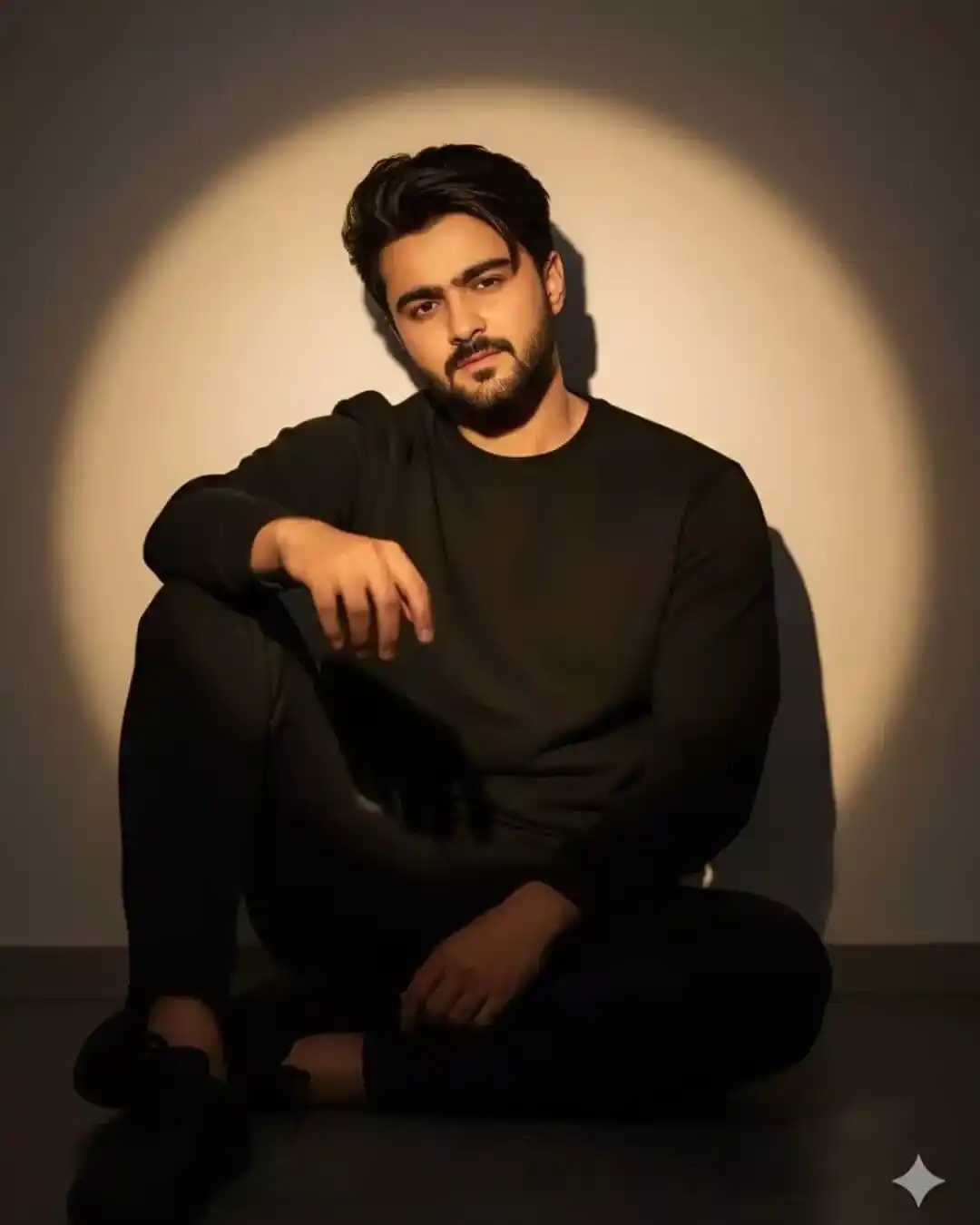
Ultra-realistic, hyper-detailed, 8K cinematic portrait of a young stylish man, using the uploaded image for exact face and hairstyle. Outfit: A plain black sweatshirt paired with black pants, minimalist yet striking under the warm, dramatic lighting. The rich texture of the fabric absorbs and reflects light subtly, emphasizing clean lines and refined simplicity. Pose: Sitting on the floor and leaning back against a smooth wall, one arm resting casually on the bent knee with the hand partially extended forward, the other arm loose and relaxed. His expression carries a confident, subtly sensual energy – a slight smirk with an intense, focused gaze. A soft shadow defines the jawline and beard, adding masculine strength and cinematic depth. Background: A warm spotlight (around 3200K) createsa circular halo of light around his head, casting a natural shadow on the wall behind. Captured from a slightly low, frontal camera angle (50mm, f/1.8, ISO 200), the soft-focus background enhances mood and depth. The high-contrast lighting and rich tonal detail in skin, hair, and fabric create a dramatic, fine-art studio atmosphere.
Gemini AI Photo Editor Prompt Nano Banana
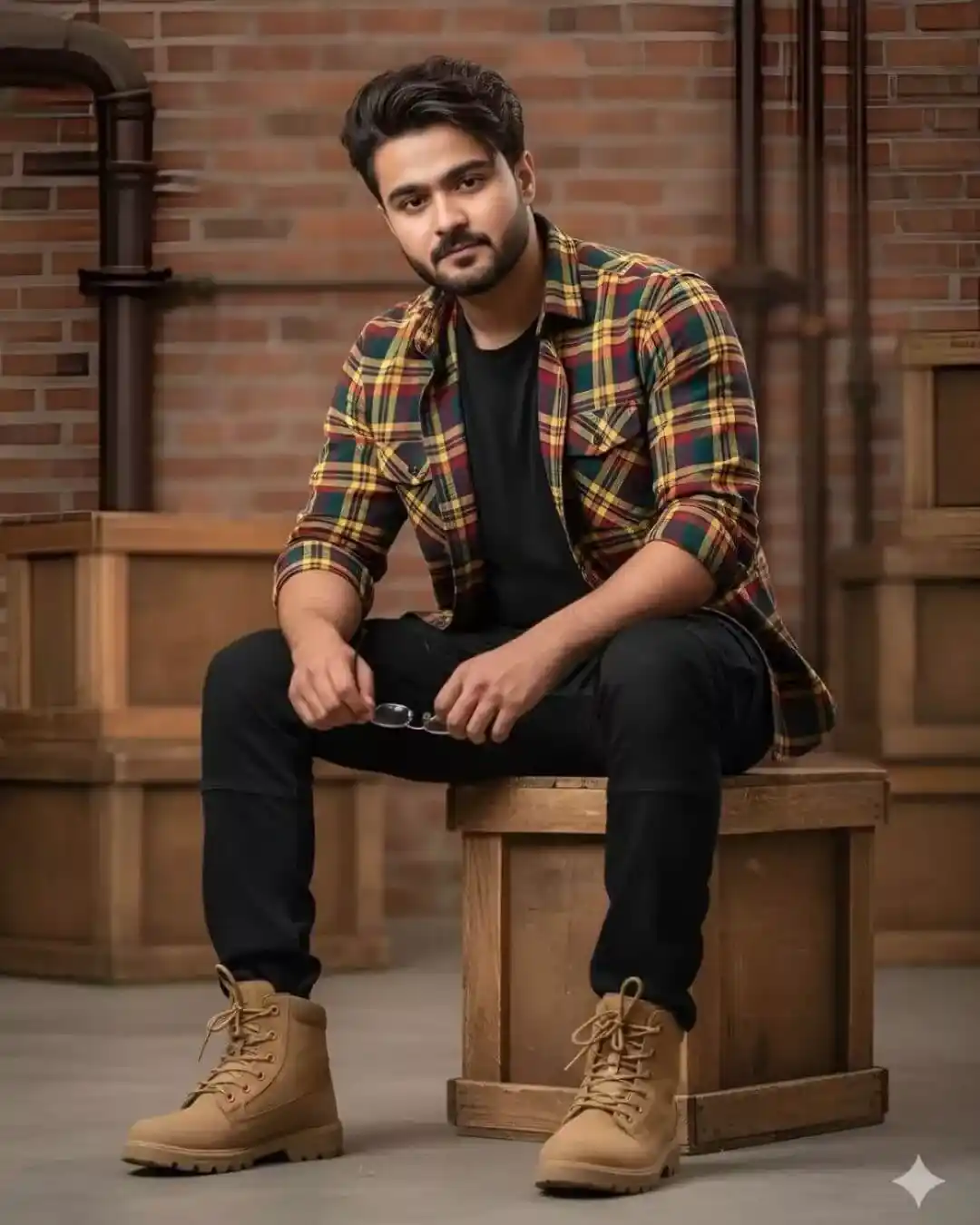
Ultra-realistic, hyper-detailed, 8K cinematic portrait of a young stylish man, using the uploaded image for exact face and hairstyle. Outfit: Black t-shirt layered under a red, green, and yellow plaid shirt with sleeves neatly rolled up, paired with black tactical jeans and tan tactical boots. He holds a pair of glasses in his right hand, addinga subtle intellectuál and casual touch to the rugged outfit. Pose: Sitting naturally on a wooden crate ina rustic, industrial setting, body slightly leaned forward with a relaxed yet confident posture. Expression is calm and composed, perfectly matching the Teference face and hairstyle. Background: Industrial interior with wooden crates, exposed brick, and metal elements softly blurred to create cinematic depth. Lighting is natural and balanced, highlighting textures of the clothing and environment while maintaining a warm, realistic atmosphere suitable for a full- body DSLR-style portrait.
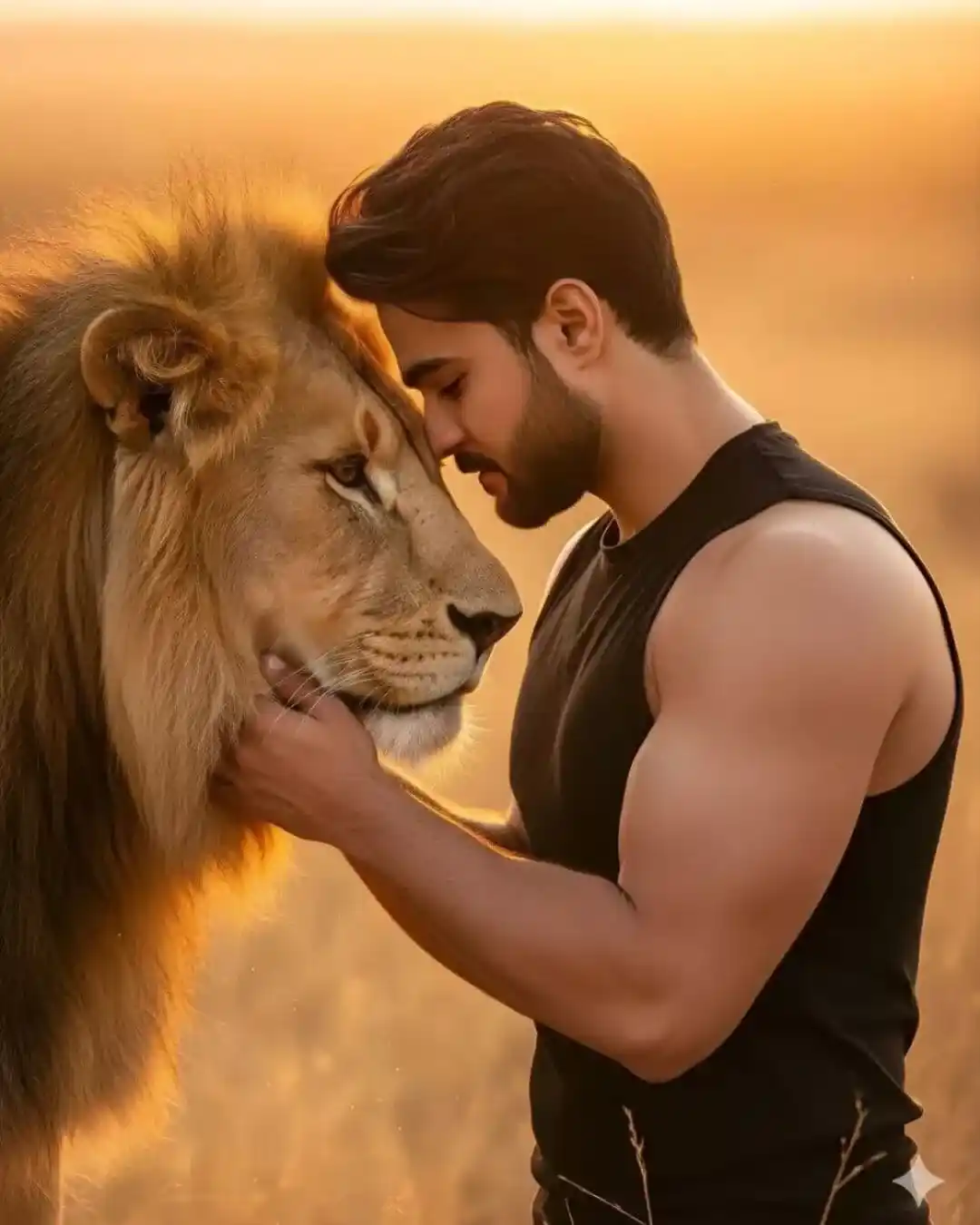
Ultra-realistic, hyper-detaited, 8K cinematic portrait of a young stylish man, using the uploaded image for exact face and hairstyle. Outfit: Black sleeveless shirt (tank top) revealing strong, muscular arms. The fabric subtly catches the golden light, complementing the man’s natural skin tone and the powerful, earthy tones of the wild savanna. Every fold and contour of the outfit is rendered with fine, photo-realistic fabric texture. Pose: Exactly matching the reference photo the man leans forward with a calm, composed expression, forehead gently touching the lion’s, his hand softly placed under the lion’s jaw in a moment of trust and connection. The expression and proportions of the face, hair, and beard must be identical to the reference image, preserving natural authenticity and emotional depth. Background: A golden-hour savanna landscape softly blurred for cinematic depth of field. Warm orange sunlight filters through the dry grass, casting a radiant glow around both man and lion. Subtle dust particles drift in the light, enhancing the atmosphere and realism. The lion’s fur gleams with detailed texture and natural golden tones, its expressive eyes meeting the man’s in perfect harmony. The overall lighting and color palette combine strength and serenity in a fine- art wildlife editorial aesthetic.
Gemini AI Photo Editor Prompt for Boys
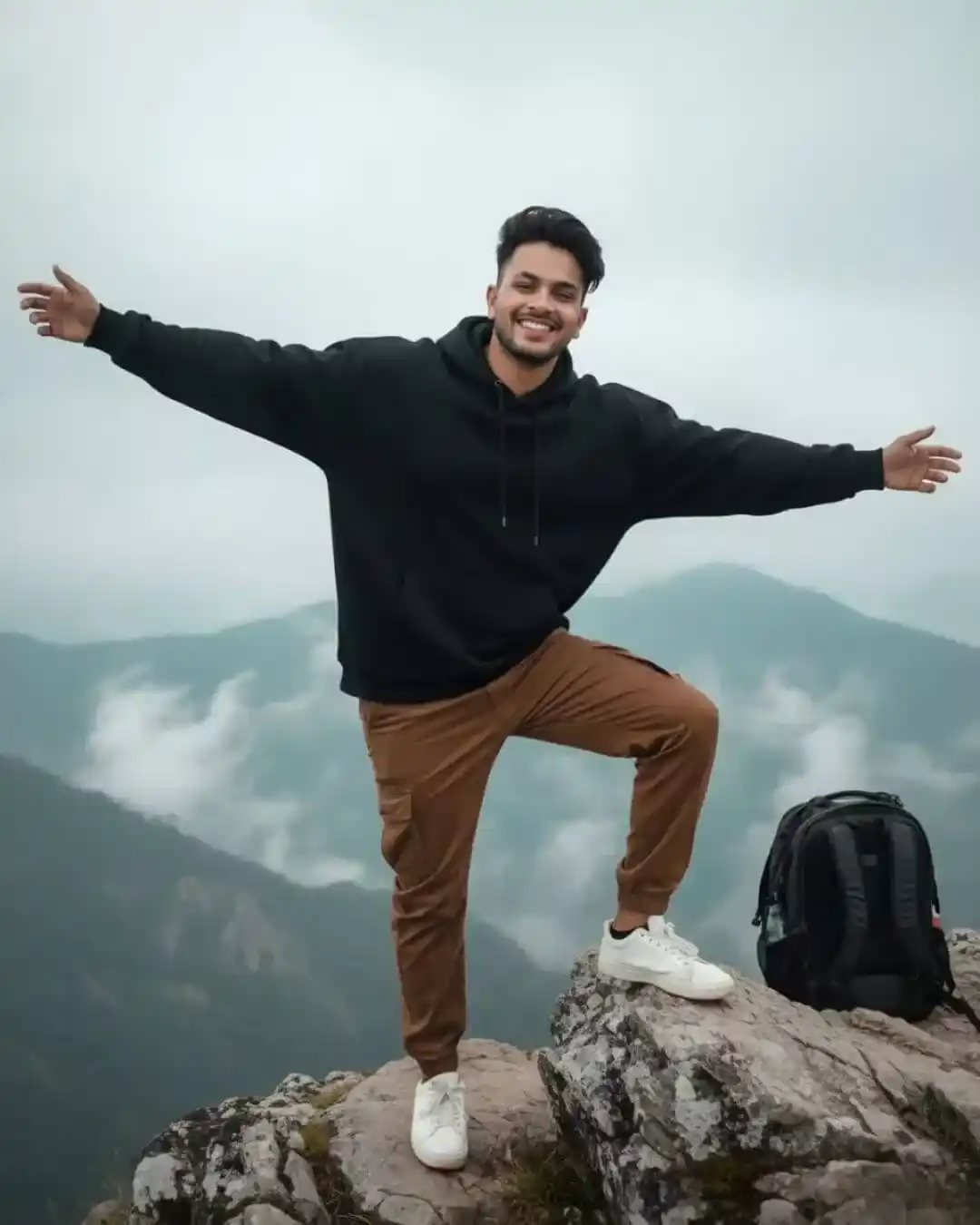
8K hyper-realistic portrait with the same face as the reference photo. The man stands on the rocky cliff doing a playful crazy pose-one leg raised on a rock, arms stretched out wide, with a bright expressive smile. His hair is shorter, neatly styled with a light wind-blown texture. He wears a black oversized hoodie, brown oversized pants, and white sneakers. The backpack is placed on the cliff behind him. Background stays identical: dense fog, misty mountain layers, and a soft overcast sky. Cinematic lighting, sharp details, natural shadows, and strong atmospheric depth.
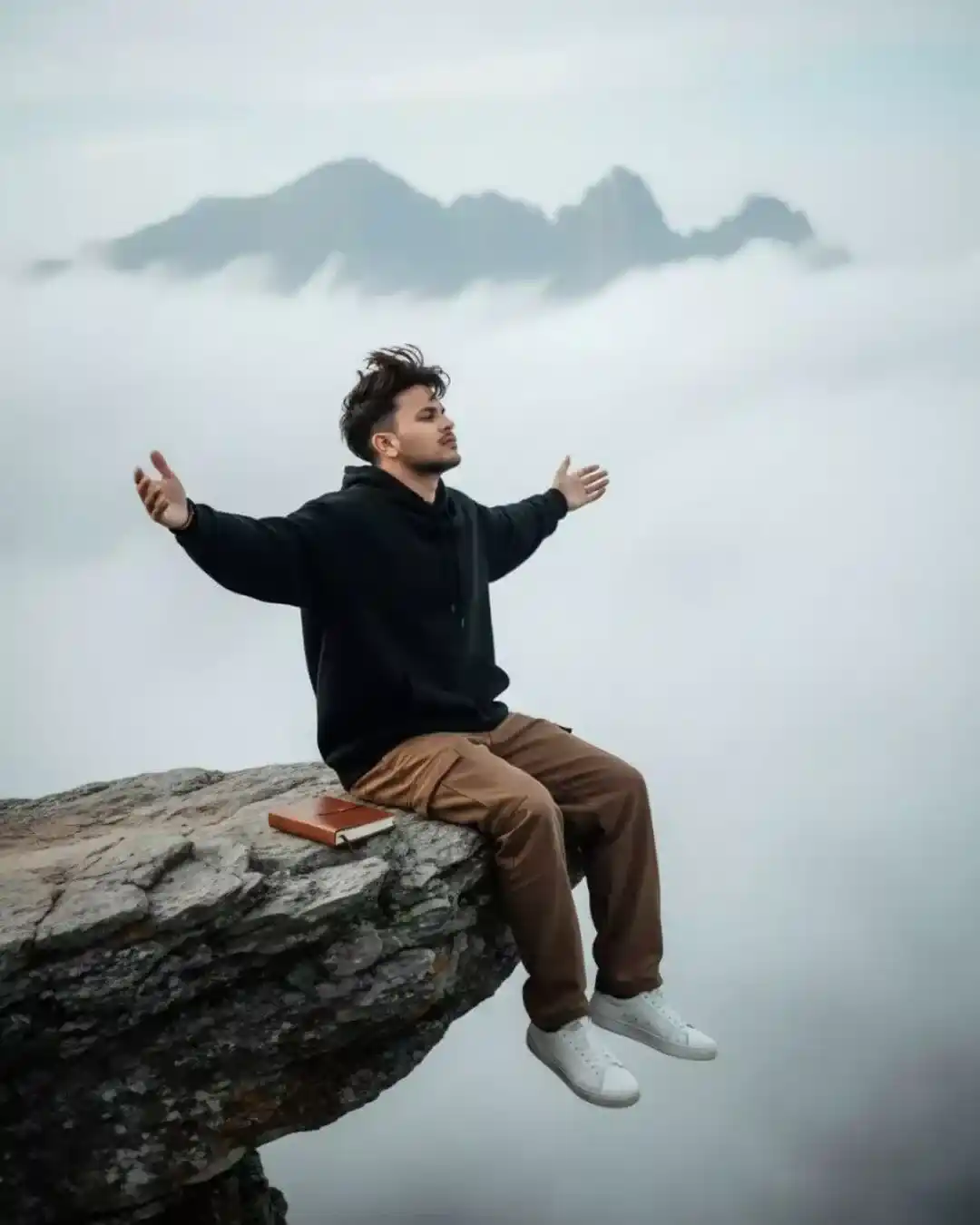
Create a hyper-realistic portrait of a man sitting in a cliffa of rock in mountain, ( Used reference photo 100% for Face details) the full shot of a man from the side view, with Wavy Farming massy hair, sitting on the edge of a rocky cliff. He is wearing a BIlack Oversized Hoodie and Brown oversized pants and white sneakers. A rests on the rock beside him. In the full dence misty background, there is a foggy, vast mountain view with a light, overcast sky.High-quality photo, cinematic light, deep shadows and bright highlights. Man open arms.
Conclusion
Using the right Gemini AI photo editor prompt makes a huge difference in the final result. A clear and well-detailed prompt helps Gemini AI understand the exact style, lighting, mood, and editing you want in your photo. This is why copy-paste ready prompts save time and give more consistent results.
Whether you want a realistic portrait, a cinematic look, or a trending Instagram-style photo, a strong prompt is the key. Keep your prompts simple, specific, and focused on details like face clarity, lighting, and background. With the prompts shared in this article, you can easily create high-quality AI-edited photos using Gemini AI.